Create your first Writer document
Use AI Visual Writer to write and format a document. Start with a blank document when you already know what to say or want to learn the editor.
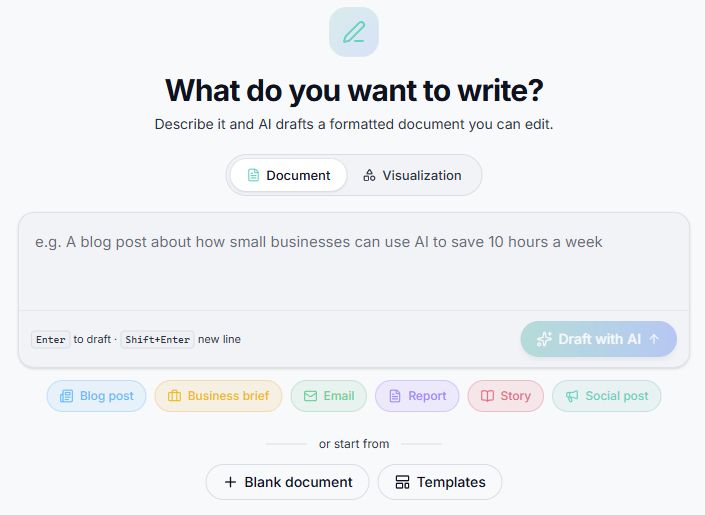
Use Blank document when you want to write the text yourself.
Watch the walkthrough
Section titled “Watch the walkthrough”Read the video transcript
Let's create a simple document in Writer. Start with a blank page. We'll add a short draft, organize it, and check that we can find it again.
Write the project's goal, its scope, and the next steps. Keep the first draft small. It's much easier to improve a clear starting point than an empty page.
Now give the section a heading. Use the formatting toolbar to make the structure easy to scan. A little organization helps your reader find the part they need.
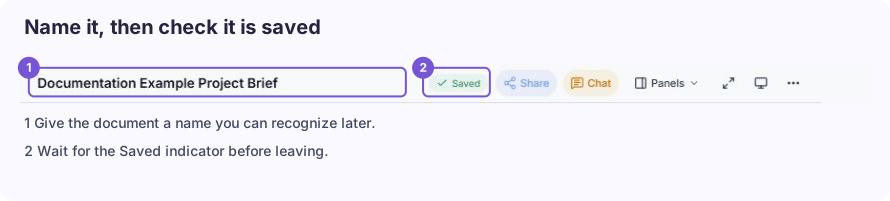
Give the document a title you'll recognize later. Then check the Saved indicator before leaving. That little pause helps you confirm the latest changes have been kept.
Back in Writer, find the title and open the document again. There it is: your draft, ready to continue. You've written, organized, and returned to your saved work.
Create a blank document
Section titled “Create a blank document”- Open Writer. The expanded navigation may call it AI Visual Writer.
- Choose Blank document on the Writer start screen.
- Replace Untitled Document in the title field.
- Click the writing area and enter your text.
- Wait for Saved before leaving.
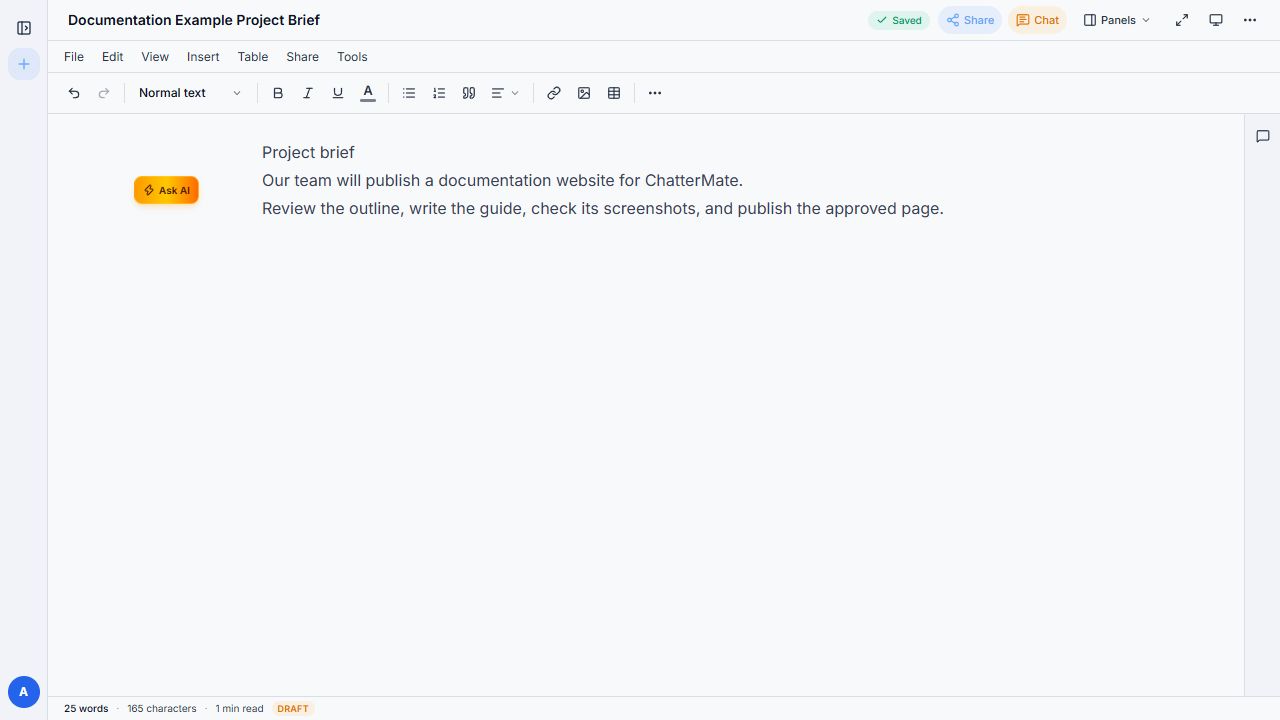
The example’s title and body persisted after a local browser reload.
Try the title Project Brief and write a short goal, scope, and list of next steps. Keep the first example small so it is easy to inspect.
Use the formatting tools
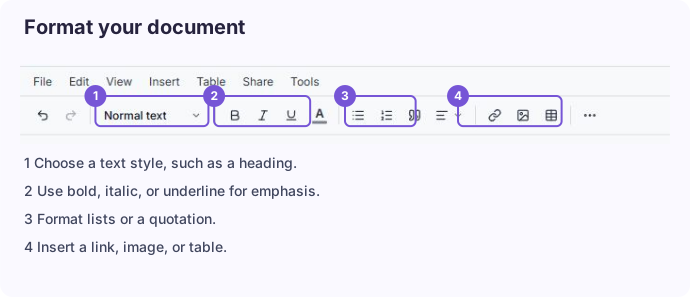
Section titled “Use the formatting tools”The toolbar provides text styles, bold, italic, underline, text color, lists, quotes, alignment, links, images, and tables. Select the content you want to format before applying a change. The footer shows word and character counts.
Use headings to divide a long document into sections. Use lists for steps and tables for comparisons. Avoid styling every paragraph differently; consistent formatting helps readers scan the document.
For more space, collapse the document sidebar or use focus mode. To use AI on existing text, continue with Refine writing.