Use public resources and prompt showcases
ChatterMate’s public site includes Features, Products, Blog, News, Guides, and Stories. These explain or showcase the product and are separate from your private chat workspace.
Find useful material
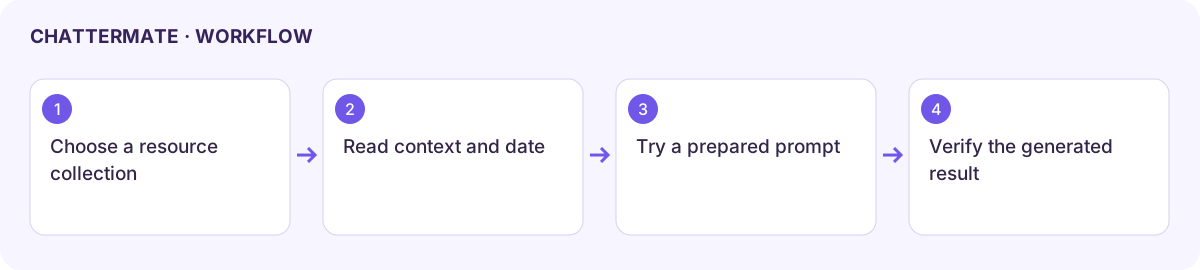
Section titled “Find useful material”Open the relevant resource collection, use its available category, tag, search, or pagination controls, and inspect the article date and purpose. A product announcement is not a complete procedure; use this documentation’s task guide for the practical workflow.
Try a showcase prompt
Section titled “Try a showcase prompt”Some public showcase pages, including the FIFA 2026 themed page, provide prompt cards and interactive visual examples. Inspect the example and choose the offered action to open a prepared request in chat. A card can start generation rather than simply copy text, so check its action and expected allowance first.
Adapt event names, dates, values, and the requested output to your actual task. Example score trackers or predictions are generated content rather than official live sports data. Verify current facts through appropriate sources before publishing them.
Use the image and 3D guides to inspect and export a generated result. An embedded showcase scene is a demonstration; it is not necessarily an artifact already saved in your Library.
Referral and invitation links open their own acceptance or account flows. Confirm the destination account and displayed terms. Use the links provided in the application to open a resource.
Workflow at a glance
Section titled “Workflow at a glance”