Getting started2 min read
Find your way around the workspace
The workspace combines a conversation area with navigation and optional side panels. You can collapse panels when you want more room to read or write.
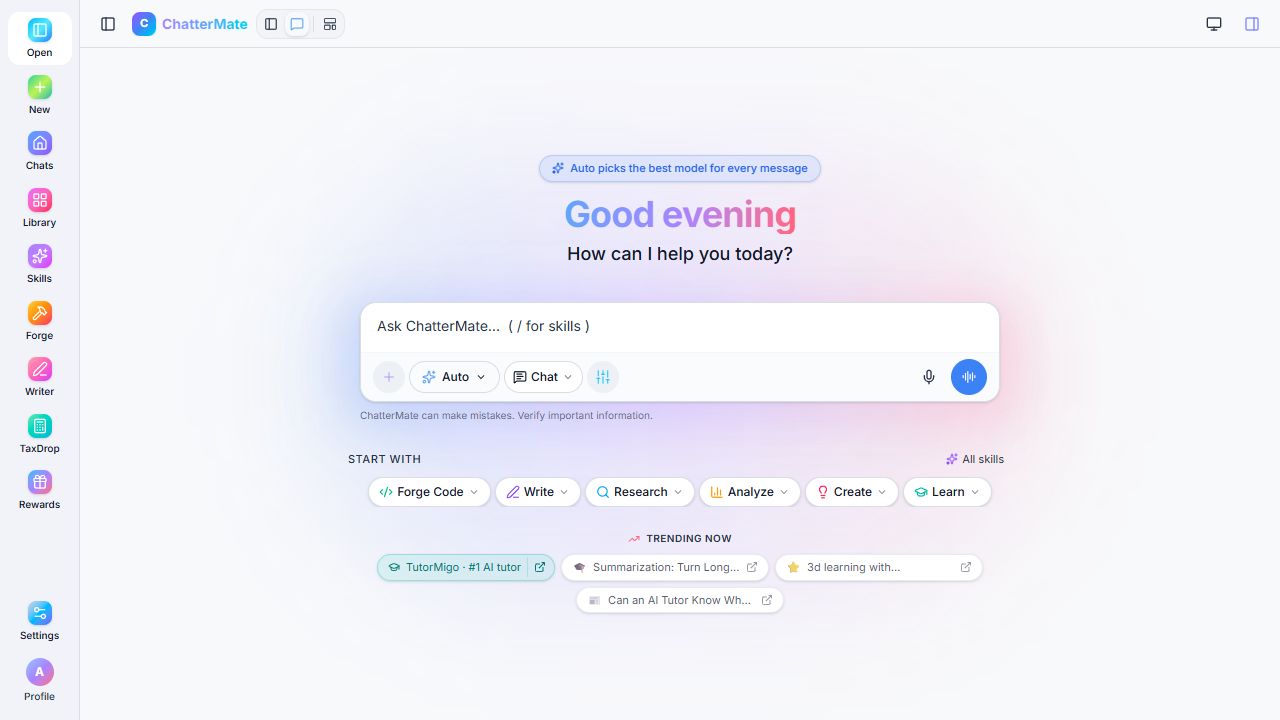
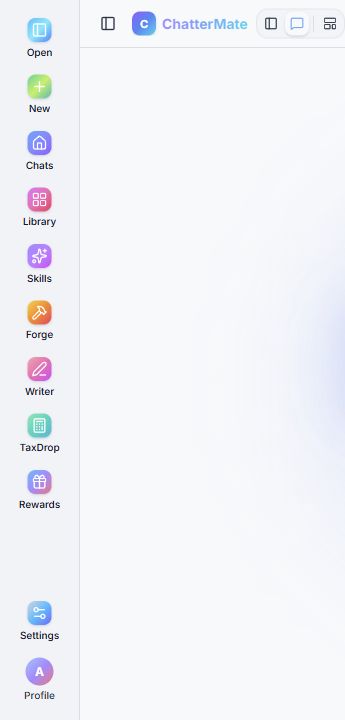
Find the main controls
Section titled “Find the main controls”| Control | Use it to |
|---|---|
| New chat | Start a separate conversation |
| Chats or recent conversations | Return to an earlier conversation |
| Projects | Group related work |
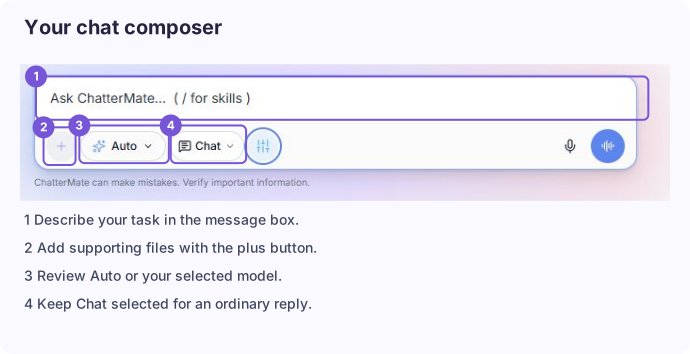
| Message box | Enter a request or a follow-up |
| Model selector | Use Auto or choose an available model |
| Reply format selector | Choose the next reply’s format |
| Add content | Attach supporting material |
| Canvas | View generated content beside the conversation |
| Library | Find generated artifacts |
| Skills | Browse starting prompts and guided tasks |
| Writer | Open the document editor |
| Settings | Manage preferences, account controls, and available connections |
Understand the side panel
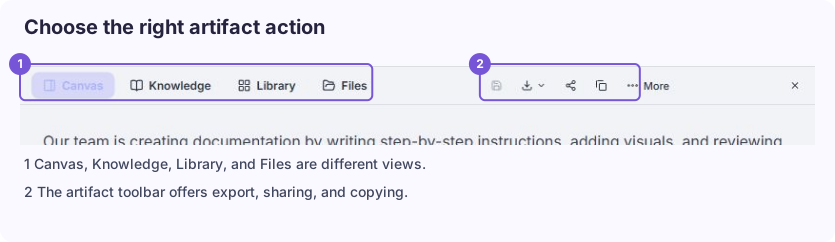
Section titled “Understand the side panel”The workspace’s side panel can show Canvas, Knowledge, Library, and Files. These are different views: Canvas displays an artifact, Library helps find artifacts, and Files helps locate files. Knowledge features depend on workspace access.
Use the layout controls in the header to show or hide the sidebar, conversation, and content panel. A narrow layout can hide navigation behind a menu.
Open your first conversation to try the basic workflow.