Review records and create a TaxDrop report
TaxDrop is an access-controlled records workspace. It organizes extracted transactions, review queues, and report snapshots. Its figures are preliminary records for review; the product does not file a tax return or establish legal tax treatment.
Choose the workspace and period
Section titled “Choose the workspace and period”Open TaxDrop and check the active workspace and reporting period. Overview shows revenue, expenses, net, readiness, expense categories, and recent documents. Always confirm the period before comparing figures.
Upload and check evidence
Section titled “Upload and check evidence”- Open Documents and add the relevant statements, receipts, or exports. Follow the current supported formats and displayed 25 MB upload limit.
- Set an optional account and batch reference, then add per-file notes where useful.
- Preview each file to confirm it belongs in this workspace. Start extraction with the available Process control if it has not started automatically.
- Inspect processing errors before retrying. Removing a source document does not necessarily remove its audit history or extracted rows.
Review the ledger
Section titled “Review the ledger”Open Transactions. Search descriptions or vendors and filter by review or evidence status. Edit date, description, vendor, amount, and category only after checking the source. Changes are versioned. If a row changed while you edited it, inspect the newer version before retrying.
Use Approve, Flag as needing evidence, or Exclude from reports according to the actual record. Review Review queue for pending approvals, missing evidence, uncategorized rows, and automated findings. Excluding a row changes report inclusion; it does not resolve a missing source.
Create and preserve a report
Section titled “Create and preserve a report”Open Reports to inspect the selected period’s profit-and-loss view. Create a draft snapshot, verify its figures and unresolved items, then use the available freeze action when the snapshot is final. A frozen snapshot preserves those figures even if later records change. Export or print the relevant snapshot and check the downloaded result.
Assistant answers questions about the selected period with row references. Check those references against the ledger before acting on an answer. An empty report can mean no approved, categorized transactions exist for that period.
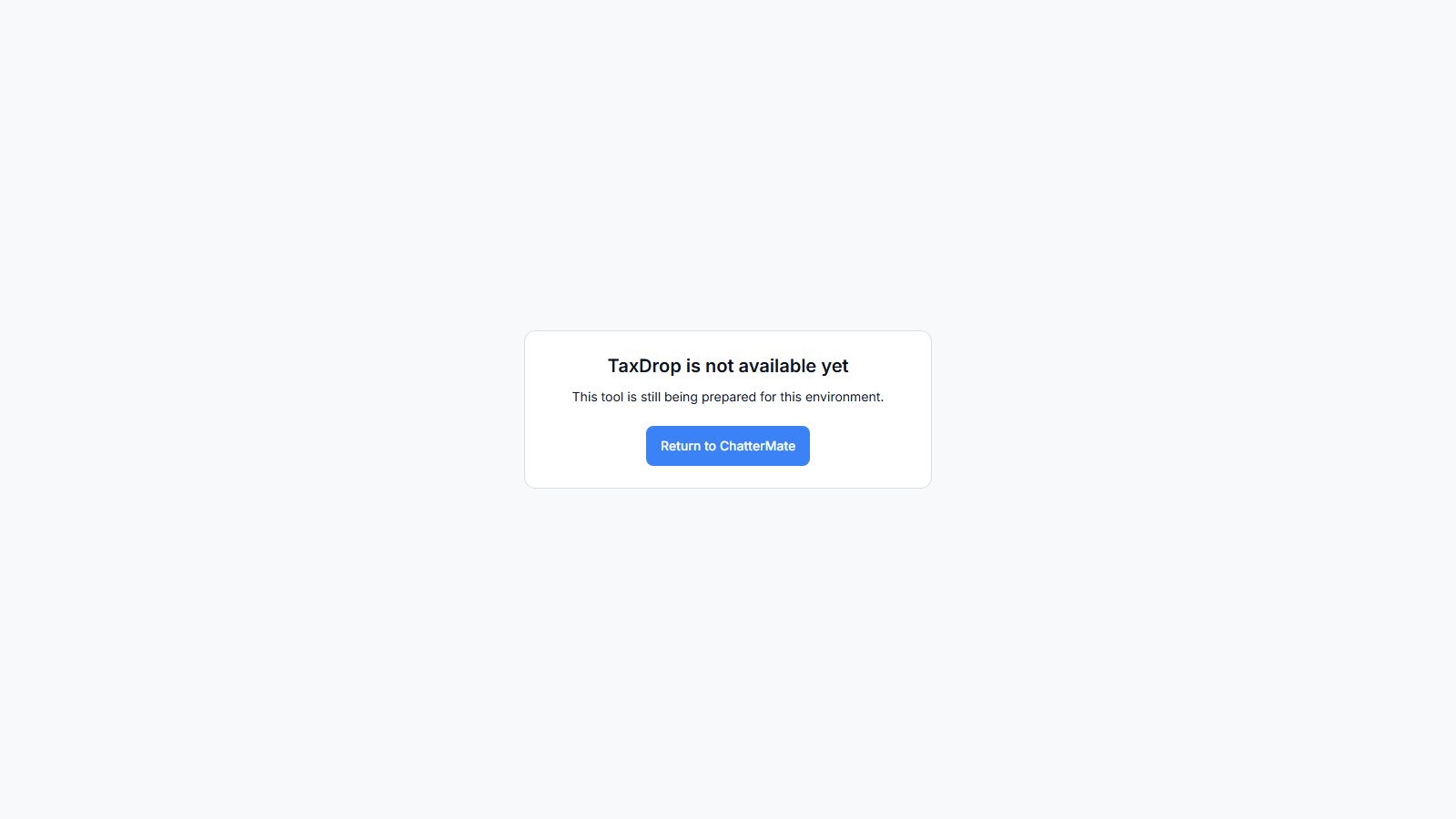
TaxDrop availability gate in the local deployment.
Workflow at a glance
Section titled “Workflow at a glance”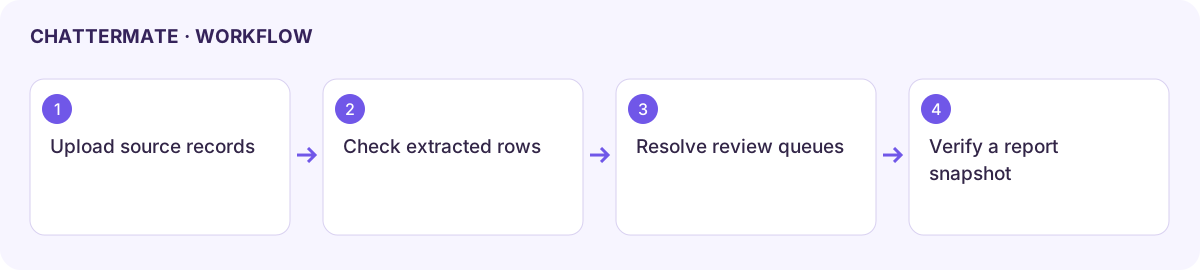
If the workspace is unavailable
Section titled “If the workspace is unavailable”The local deployment displayed TaxDrop is not available yet and This tool is still being prepared for this environment. Use the guide’s controls only when your deployment exposes the working tool. This message is an availability gate; it does not mean your records were uploaded or processed.