Build, test, and continue work in Forge
Forge is the full browser development workspace for files, AI assistance, preview, terminal, data, and source control. Open Forge Code from the sidebar or use a supported Build handoff. Available tools depend on account access and the project environment.
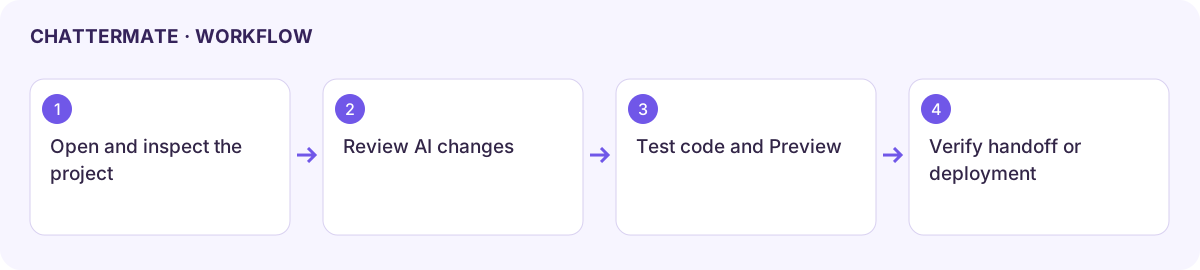
Start and inspect a project
Section titled “Start and inspect a project”- Open the intended project or create one through the available project control. Give it a recognisable name and a small initial brief.
- Review the file tree, project instructions, and the environment status before asking for changes.
- Use Ask for explanations, Plan for a reviewable approach, or Build for implementation where those modes are offered.
- Read the proposed plan or file changes. Run the project’s appropriate checks through the available terminal or test controls.
- Open Preview and try the main user workflow, including an empty or invalid input. Inspect console or terminal errors when available.
Work across the panels
Section titled “Work across the panels”| Surface | What to check |
|---|---|
| Files / Code | Correct file, unsaved changes, and the final generated implementation. |
| Preview | Actual behaviour at the intended screen size, not only whether a page loads. |
| Terminal | Correct workspace, command output, and completion or failure. |
| Data | Whether the environment actually has a connected data service and the intended schema. |
| Source control / GitHub | Repository, branch, changed files, commit, and any remote push result. |
| Checkpoints / history | The recovery point you intend to restore and the newer work it could replace. |
| Secrets | The required variable name and environment; keep secret values out of chat, screenshots, and source files. |
Deploy or share a preview
Section titled “Deploy or share a preview”Use the enabled deployment or preview-sharing flow. Review the destination, visibility, environment variables, and any cost or plan requirement. Verify the final URL and a real user task after the operation. A running local preview is not a deployed site.
Shared previews and embeds have their own audience and access behaviour. Test the intended viewer experience before distributing a link. Use Forge billing to inspect its current allowance or plan rather than assuming chat allowance covers every development resource.
Marketplace and profiles
Section titled “Marketplace and profiles”In Marketplace, search listings and choose the available sort, including Trending, Newest, popularity, or price. Inspect the listing, creator profile, preview, terms, and included material before using any acquire or fork action. A creator profile’s projects, views, forks, and stars describe activity rather than an independent security review.
If an environment fails, retain files and the specific error. Avoid destructive commands or checkpoint restores as a first troubleshooting step.
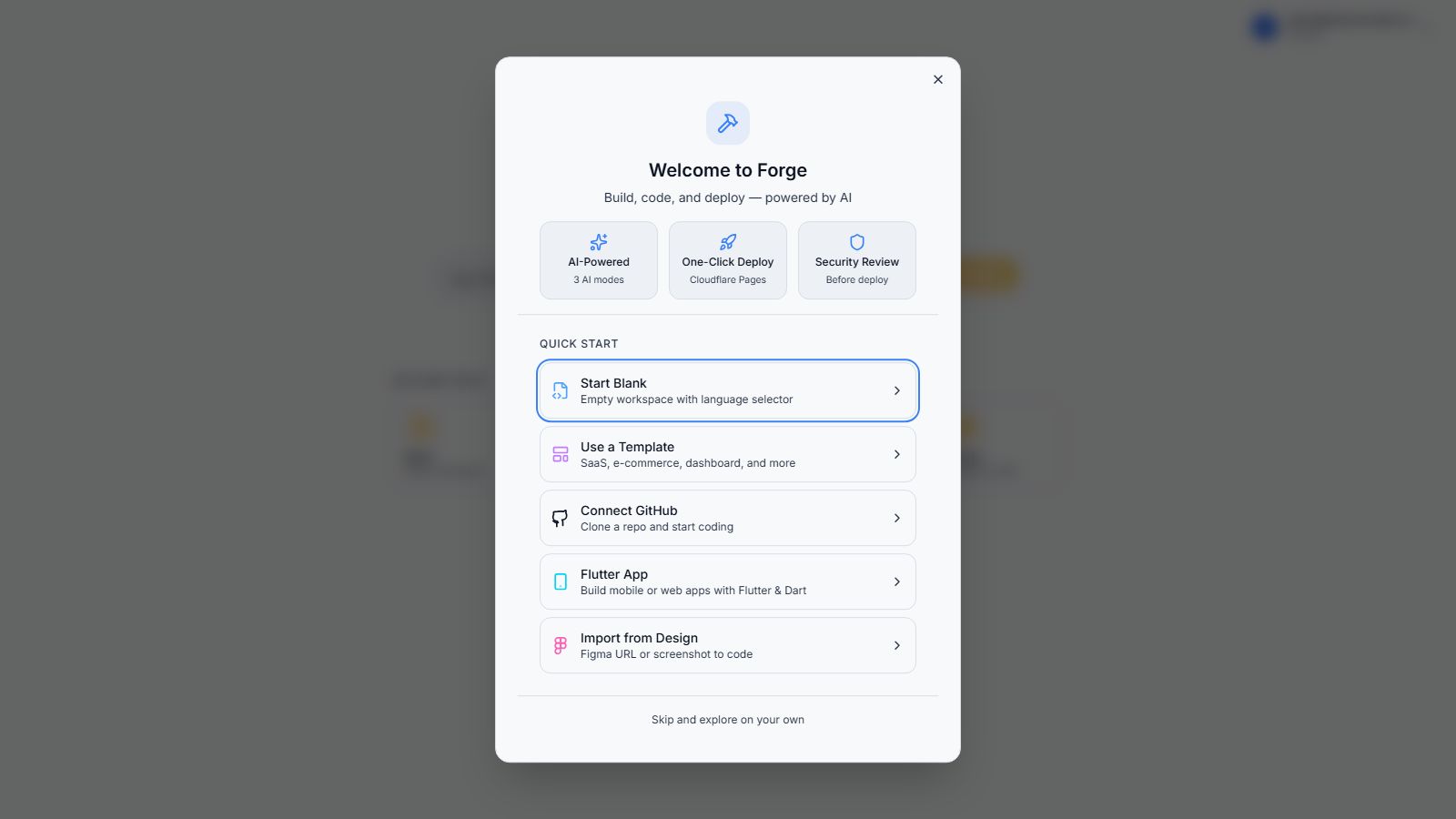
First-run Forge welcome and quick-start choices.
Workflow at a glance
Section titled “Workflow at a glance”