Open and review content in Canvas
Canvas displays content beside the conversation. Use it to read a result while continuing the discussion or to work with the available artifact controls.
Open a response
Section titled “Open a response”- Find the response you want to work with.
- Choose Edit in Canvas below it.
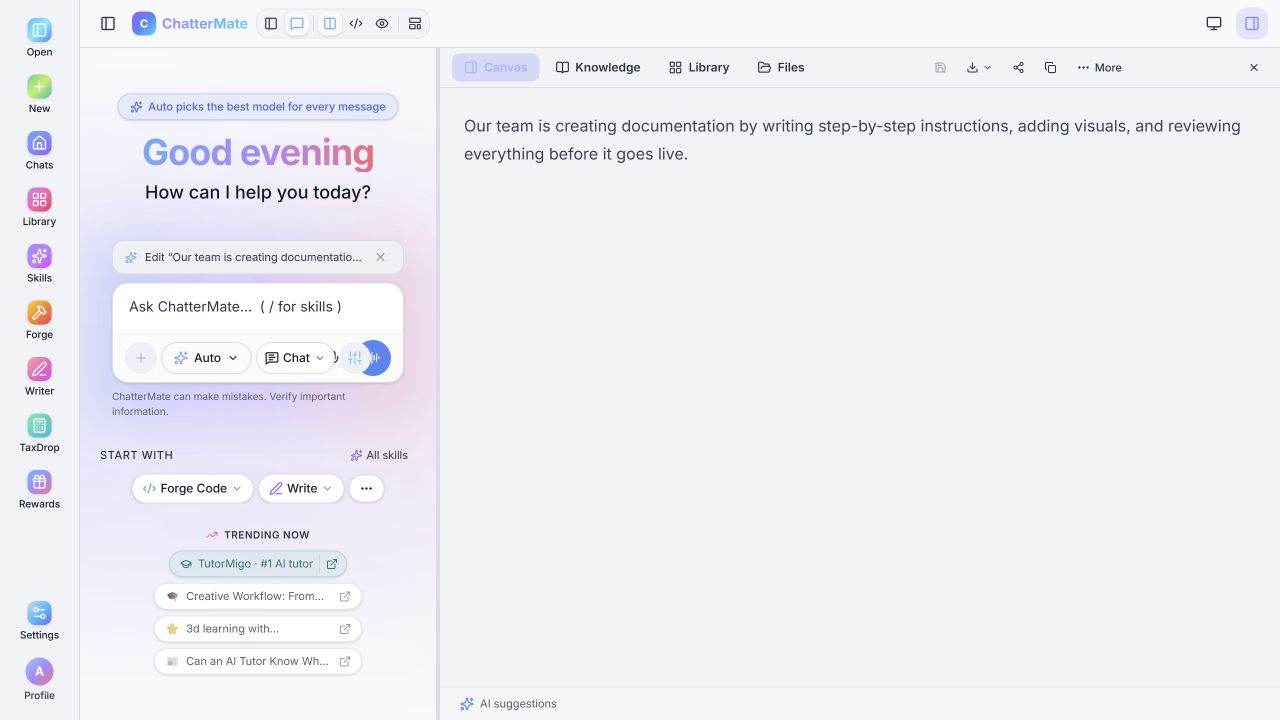
- Check the content that opens in the side panel.
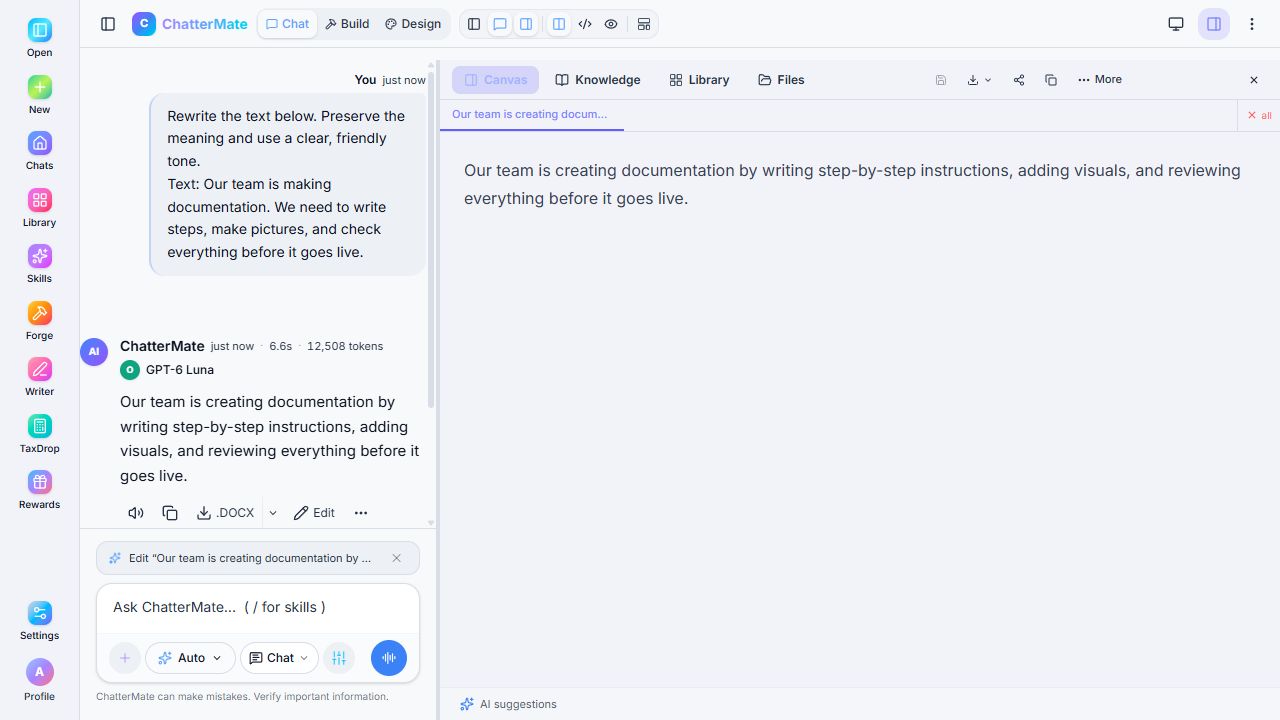
This local walkthrough verified opening the reply. Further edits and exports need their own checks.
Work with the open artifact
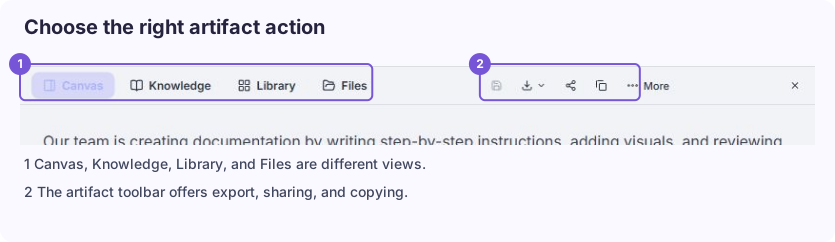
Section titled “Work with the open artifact”The panel can offer saving, exporting, sharing, copying, and additional actions. Use the controls for the currently open artifact. When several artifact tabs are open, select the intended tab first.
The chat can display a suggestion to route the next request to the open artifact, or mention @canvas. Check that the intended artifact is open before requesting a change.
Example: Shorten this paragraph to one sentence and keep its meaning. After an edit, compare the artifact with your request and confirm that unrelated content stayed intact.
Layout controls can switch between split, code, and preview views where supported. If the content seems absent, check the active tab and view before closing it.
Open content from Library
Section titled “Open content from Library”You can also open a saved artifact from Library. Choose its card, then check the content that appears under Canvas.
Review export choices
Section titled “Review export choices”Open the artifact’s export menu to see the formats offered for that content. Choosing a format and checking the resulting file are separate steps.
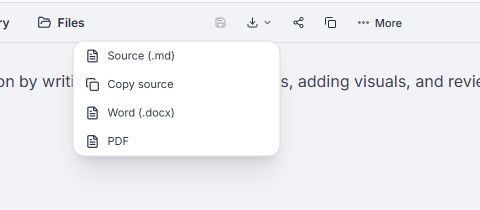
The menu was inspected; export formatting still needs a final file check.